
Document looks good.
Change {{ editor.spellingErrors[editor.spellingErrorCursor].word }} to:
Severity: Notice
Message: Undefined variable: pagecount
Filename: controllers/document.php
Line Number: 4926












Title: Girlfriend Application
Document ID: 0
Document Completed:
No Document History |

Title: Girlfriend Application
Document ID: 0
Document Completed:
No Document History |

Your Session is already expired. Please login.


The Official Girlfriend Application Form is a document that you have to complete if you want to apply as someone’s girlfriend. In general, the form is provided by a person to a girl if he or she considers the girl as a potential partner. It should be filled out in its entirety, as leaving questions unanswered could disqualify you.
To increase your chances of winning the position, you may attach photographs of yourself and relevant documents.
You must honestly answer all the sections of the Official Girlfriend Application form to be considered for the position. The form has eight sections, requiring your personal information. Based on all the information you will provide, the evaluator would decide if you are fit for the position.
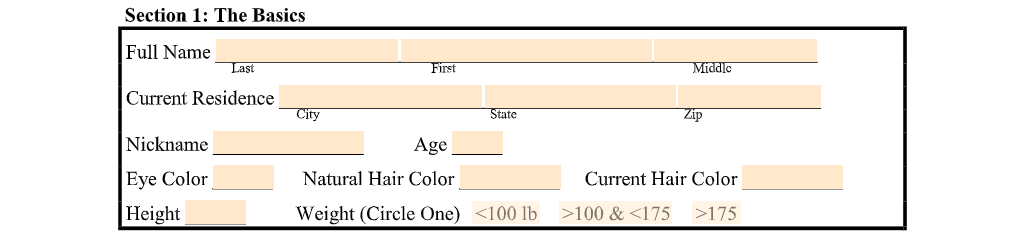
Section 1: The Basics
This section requires basic information about you. It asks for the following information:

Section 2: Contact Information
Provide the required contact information:
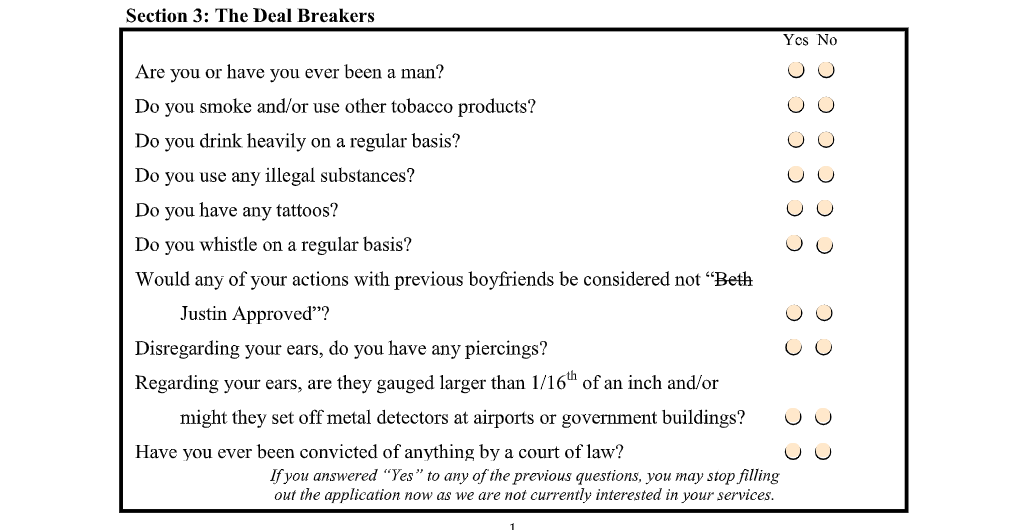
Section 3: The Deal Breakers
Answer yes-or-no questions as truthful and accurate as possible.
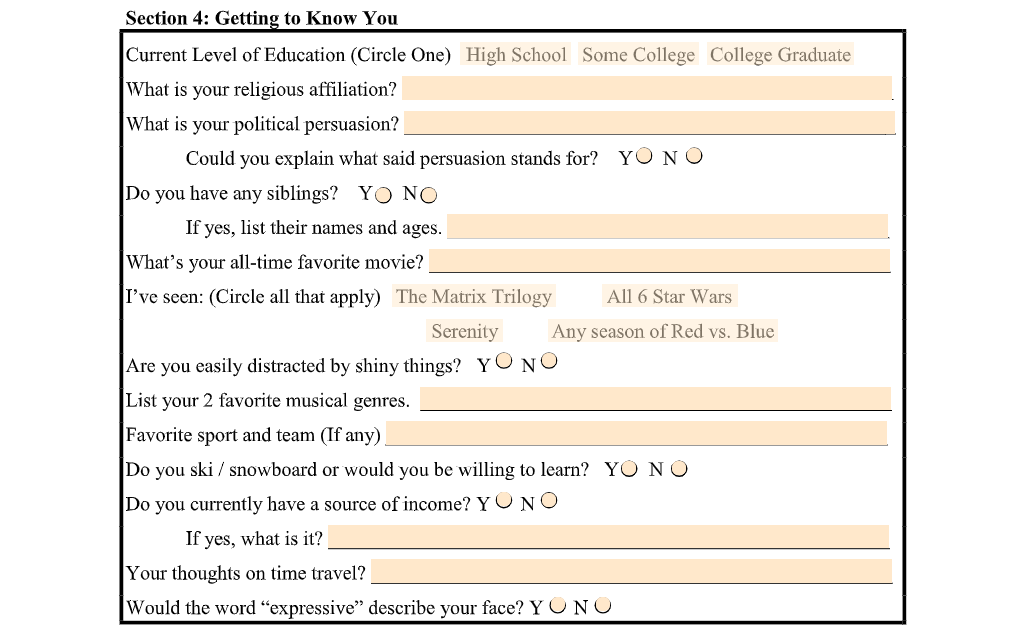
Section 4: Getting to Know You
Answer personal questions about you, including your beliefs and interests.
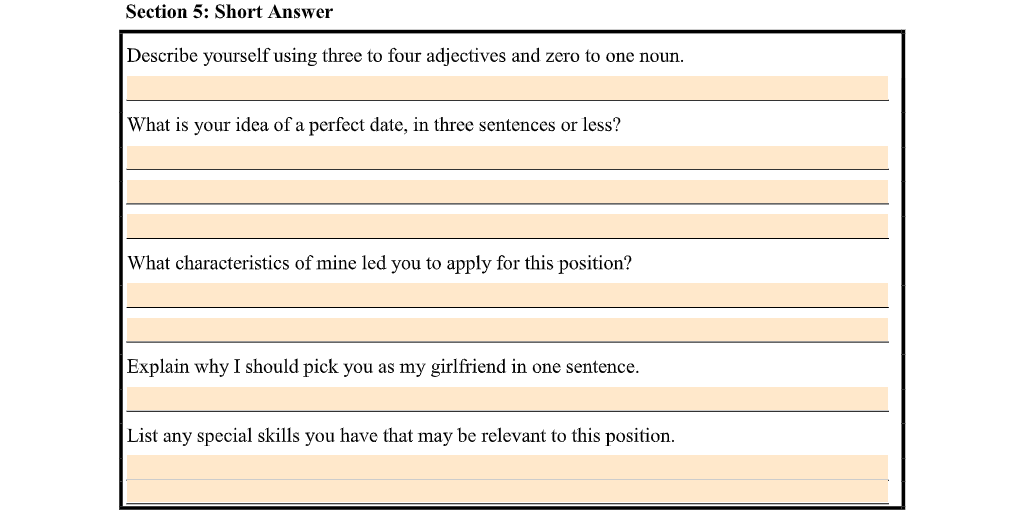
Section 5: Short Answer
Answer open-ended questions that would help the reviewer gauge if you are fit for the position.
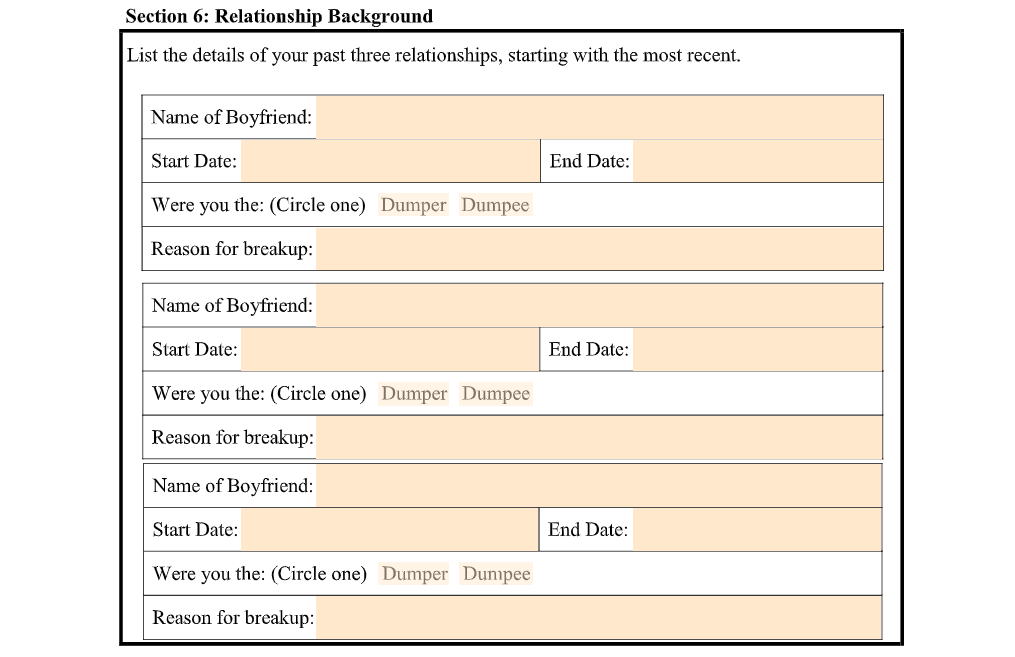
Section 6: Relationship Background
Provide the details of your past three relationships, stating with the most recent one. This section asks for the name of your ex-boyfriend, the start and end date of your relationship, your role in the breakup, and the reason for the breakup.
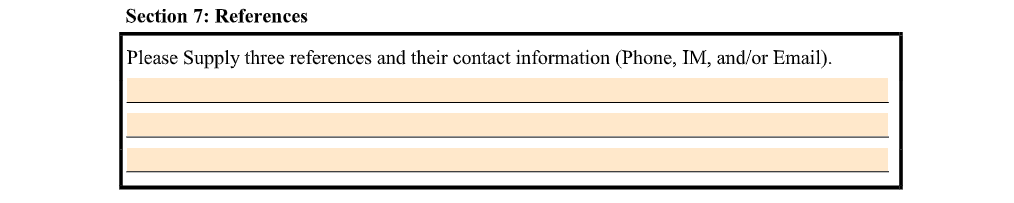
Section 7: References
Provide three character references. Provide their names and contact information.
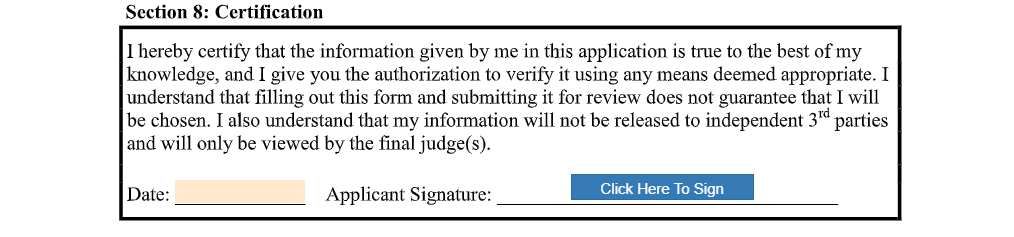
Section 8: Certification
Date and sign the document to validate all the information you have provided.
After completing the Official Girlfriend Application Form, you may submit it to the person who asked you to fill it out. Submission of the form has no headline, you may return it to the provider at your convenience.

Use the File button to access functions such as New PDF, New Page, Organize Pages, Save, Save As, Print, Export, Share Link, Email, and Postal Mail.

Use the Text button to add texts, numbers, and symbols to your document. To customize the texts, you will be able to access additional tools, such as the Bold, Italics, Underline, and Strikethrough buttons, the text alignment options, such as Left, Center, Right, and Justified buttons, the Bulleted List and Numbered List buttons, the Font Styles and the Font Sizes drop-down lists, and the Font Color and Font Highlight Color selection tools.

Use the Signature button to add a signature to your document and to assign a signatory. You will have the option to Type, Draw, or Upload your signature.

Use the Image button to add an image, logo, or photo to your document. The accepted formats are .jpg, .jpeg, and .png.

Use the Date button to add a date to your document. The default date format is MM/DD/YYYY, but you can modify it by typing the date format you prefer. Initially, it will display the current date, but you will be able to change it. To customize the date, you will be able to access additional tools, such as the Move text button, the Font Styles and the Font Sizes drop-down lists, the Bold, Italics, and Underline buttons, and the text alignment options, such as Left, Center, Right, and Justified buttons.

Use the Check button to add a check symbol to your document. To customize the check symbol, you will be able to access the Size adjustment tool.

Use the Cross button to add a cross symbol to your document. To customize the cross symbol, you will be able to access the Size adjustment tool.

Use the Whiteout button to white out or erase items in your document.

Use the Redact button to censor items in your document.

Use the Marker button to highlight items in your document. To customize the marker, you will be able to access the Color selection and Size adjustment tools.

Use the Insert button to add Icons, Header, Footer, Watermark, Comment, and Sticky Note to your document. The Icons button allows you select shapes such as Arrow Left, Arrow Right, Arrow Up, Arrow Down, Thumbs Up Thumbs Down, Question Mark, Exclamation Point, Circle, and Square; the Header button allows you to add a header; the Footer button allows you to add a footer; the Watermark button allows you to add a watermark by typing or uploading an image; the Comment button allows you to leave a comment in any part of the document; the Sticky Note allows you to post a note to any part of the document.

Use the Zoom button to zoom in and zoom out your document.

Use the Undo button to negate the last command done to your document.

Use the Redo button to reverse your last Undo.

Use the Help button to read instructions about how to use PDFRun’s online editor.

Use the Send for Signing button when you are done editing your document and you want to send it to another person for signing. You will need to provide the information of the recipient of your document to proceed.

Use the Email button when you are done editing your document and you want to send it to another person via email. You will need to provide the information of the recipient of your document to proceed.

Use the Download button when you are done editing your document and you want to save a copy of it to your device.

Use the Done button to finish editing your document.